
THISISTHEPART
Karaoke
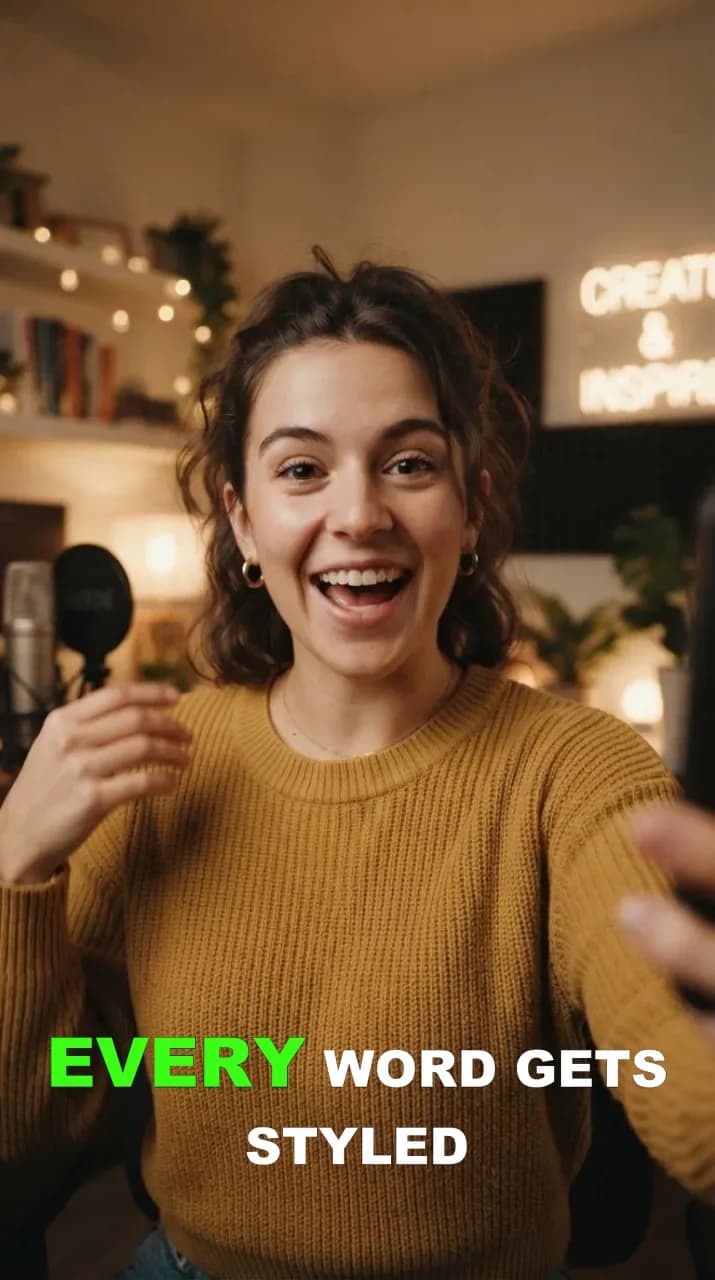
DefaultActive word pops in color
Up to four words at a time. The spoken word turns your highlight color, grows and pops; the rest fade in.
Six burned-in caption styles, from a word-by-word color pop to a line that slams onto the screen. Pick one per upload, set your colors and font once in a brand kit, and fix any word before you export.
Free plan · No card
Style gallery
Previews show the typography and highlight logic. Colors, font, size and position are set per brand kit or per clip.
THISISTHEPART
Active word pops in color
Up to four words at a time. The spoken word turns your highlight color, grows and pops; the rest fade in.
THISISTHEPART
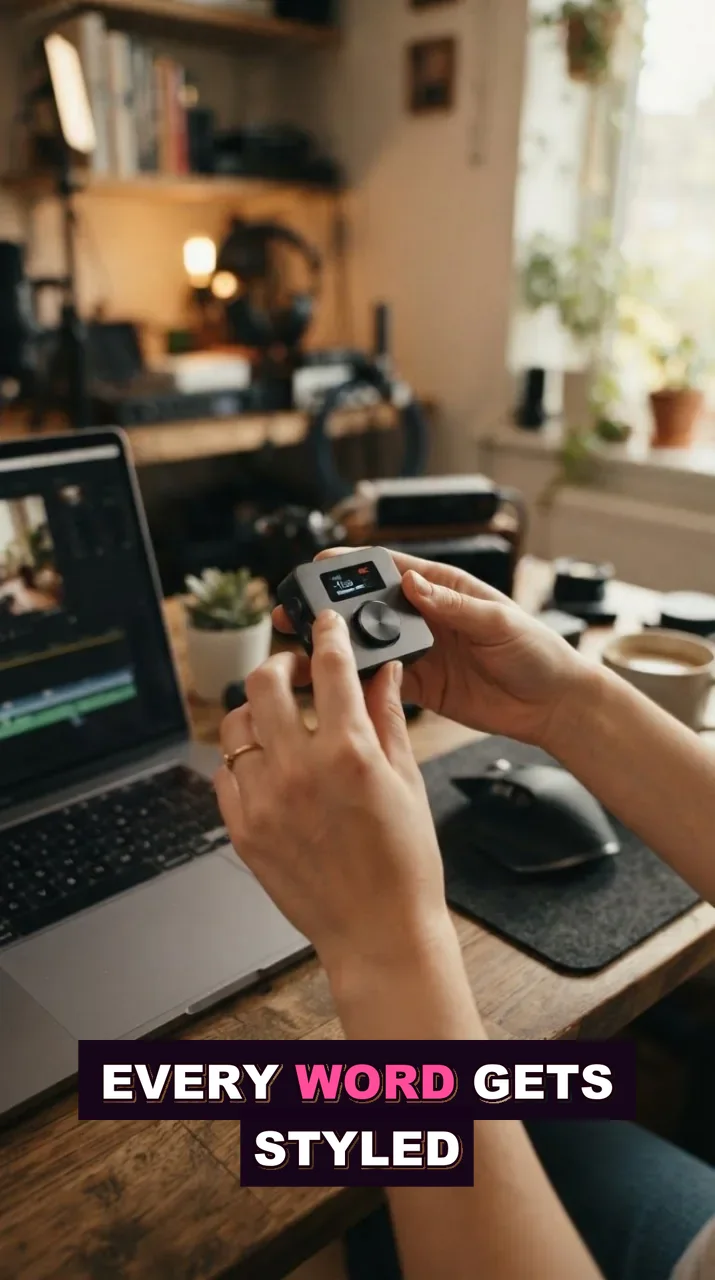
Active word recolored, no motion
The same word groups as Karaoke. The spoken word gets the highlight color and a larger size without animation.
THE
One clean word at a time
A single uppercase word, no highlight. The quietest style for dense explainers.
THE
Words fade in one by one
One word at a time with a quick fade-in and no movement. Reads well over busy footage.
THIS IS THE PART
The whole group fades together
A group of words fades in and out as one line, with no highlight. Good for interviews and quotes.
IS THE PART
Line slams in with a blur
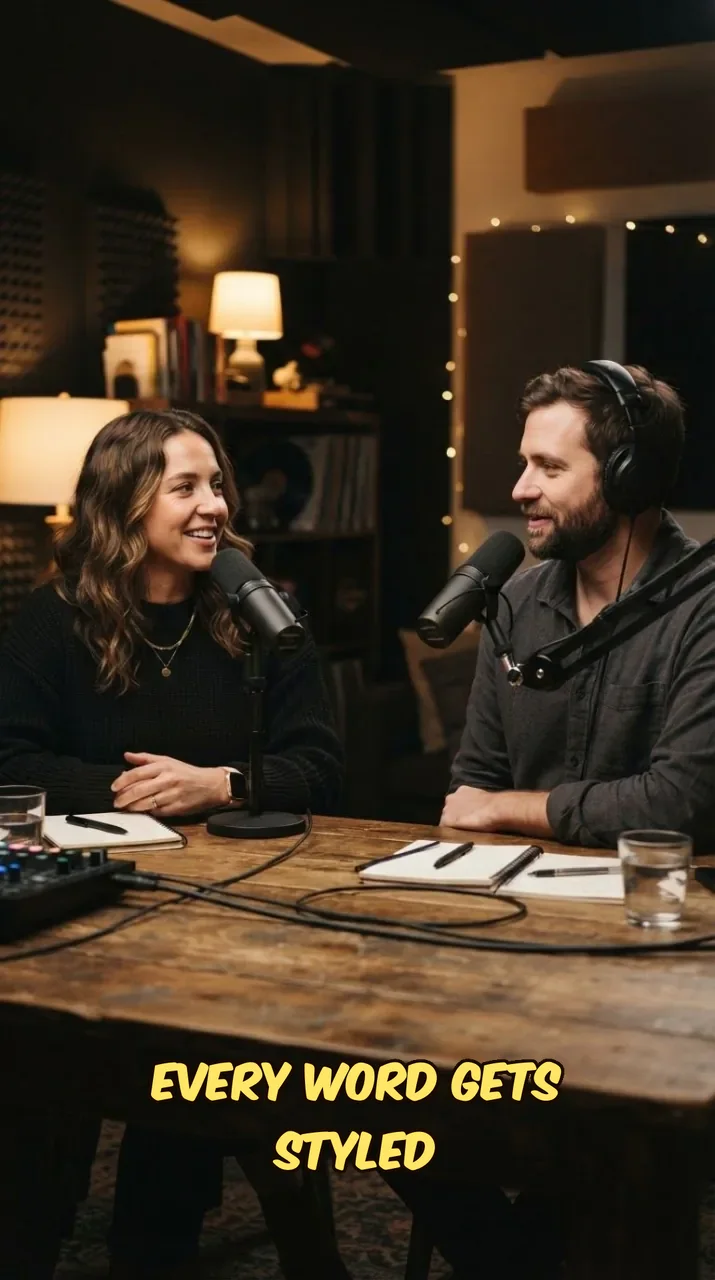
Uppercase Komika Axis line that scales in from oversized with a blur shockwave. Built for hooks.
The six styles fall into three groups. Choose by how the speaker talks, not by what is trending.
Karaoke and Highlight show a short group of words and mark the one being spoken, so viewers can follow a fast speaker with the sound off. Karaoke pops the active word up in color; Highlight keeps everything still and only recolors it.
Standard and Typewriter show one word at a time without a highlight. Fade Line brings a whole group in and out together. These read well over screen recordings, slides and interviews where a bouncing word would distract.
Shockwave Impact sets the line in Komika Axis and slams it in from oversized with a blur shockwave. Use it on punchlines and reaction clips, not on a ten-minute explainer.
Choose a style, colors, font, size and position once. New clips that use the kit start from those settings.
When you configure an upload, keep the kit's style or choose a different animation for that video.
Open a clip, switch style, adjust colors, or double-click a word to correct a name or number the transcript missed.
Captions are burned into the video. Publish to YouTube or TikTok, or download the file for other networks.
| Task | Manual | HypeNest |
|---|---|---|
| Timed captions for a clip | Import an SRT, fix timing, style in an editor | Word-timed captions come with every clip |
| Active-word highlight | Keyframe each word by hand | Karaoke or Highlight preset |
| Same look across a channel | Copy a template project every time | Brand kit applies your style to new clips |
Many people scroll Shorts and TikTok with the sound off. Captions are how they decide whether the first sentence is worth unmuting. The style changes how that sentence reads: a word-by-word highlight keeps the eye moving with a fast speaker, a calm single-word style keeps a technical explanation readable, a loud line style makes a punchline land.
The wrong style costs attention. A bouncing highlight over a slide full of numbers competes with the slide. A plain line under a comedian's timing flattens the joke. Pick the style from the content of the clip, not from a trend.
When people search for Hormozi-style captions they usually mean bold, uppercase captions that show a few words at a time and color the word being spoken. In HypeNest that look is the Karaoke preset. If you want the same highlight without motion, use Highlight.
Set a strong highlight color, a heavy font such as Anton or Arial Black, and center position if the speaker's face sits low in the frame. HypeNest is not affiliated with Alex Hormozi; the name only describes a popular caption look.
Start from the speaker. Fast, energetic delivery suits Karaoke or Highlight. Measured teaching, interviews and screen recordings suit Standard, Typewriter or Fade Line. Reserve Shockwave Impact for short hooks and reaction moments.
Then check the frame on a phone. Captions should not cover the mouth, a product on screen or on-screen text in the source. Move them to the top or center when the bottom of the frame is busy, and turn the background on when the footage is bright.
Every clip lets you turn captions on or off, set the highlight, text and outline colors, add a background with its own color and opacity, pick a font (Arial Black, Anton, Bubble Sans, Komika Axis or Noto Sans), set the size and choose top, center or bottom. The highlight color only applies to styles that highlight the spoken word (Karaoke and Highlight); on the others that picker is hidden.
Captions are uppercase by default. There is no emoji caption style and no control for words per line; the style decides how many words appear together.
Captions are part of the clip workflow, not a separate subtitle tool. HypeNest finds moments in a long video, frames them vertically, adds word-timed captions in your style and drafts titles. You review each clip before it is published to YouTube or TikTok or exported for other networks.
A standalone AI Captions pass on a full video is also available (up to 30 min per video). HypeNest has a free plan with no card; exports carry no watermark.
Readable word-timed captions for two or more speakers.
Calm single-word styles that do not fight slides.
One brand kit per client keeps caption looks consistent.
Glossary
Burned-in subtitles whose words appear, change color or move in time with speech, so a viewer can follow the video with the sound off.
Save the style, colors, font and position in a brand kit and pick the kit when you upload. Each plan includes at least one kit.
See brand kitsSix: Karaoke (the default), Highlight, Standard, Typewriter, Fade Line and Shockwave Impact.
Yes. Use the Karaoke preset with a bold font and a strong highlight color. Highlight gives the same look without the pop animation.
Yes. Pick one of five fonts, set size and position, and change text, outline and background colors. The highlight color applies to Karaoke and Highlight.
Yes. In the clip editor's Subtitles panel, open the Words tab and double-click the word to edit it.
Yes. The style is rendered into the exported clip, so it looks the same on YouTube, TikTok and anywhere you upload the file.
Yes. All six styles are available on the free plan, and exports have no watermark. Paid plans add AI capacity, storage and priority.
Six burned-in caption styles, from a word-by-word color pop to a line that slams onto the screen. Pick one per upload, set your colors and font once in a brand kit, and fix any word before you export.