
AI dubbing
Same voices, same laughs. Another language.
HypeNest translates what is said in your clip and voices it again in the new language. Each speaker is cloned from the clip itself, so a two-person podcast still sounds like those two people. Music, sound effects and laughter come from the original track.
- 10 languages
- Each speaker in their own cloned voice
- Music and laughter kept
- Edit any translated line
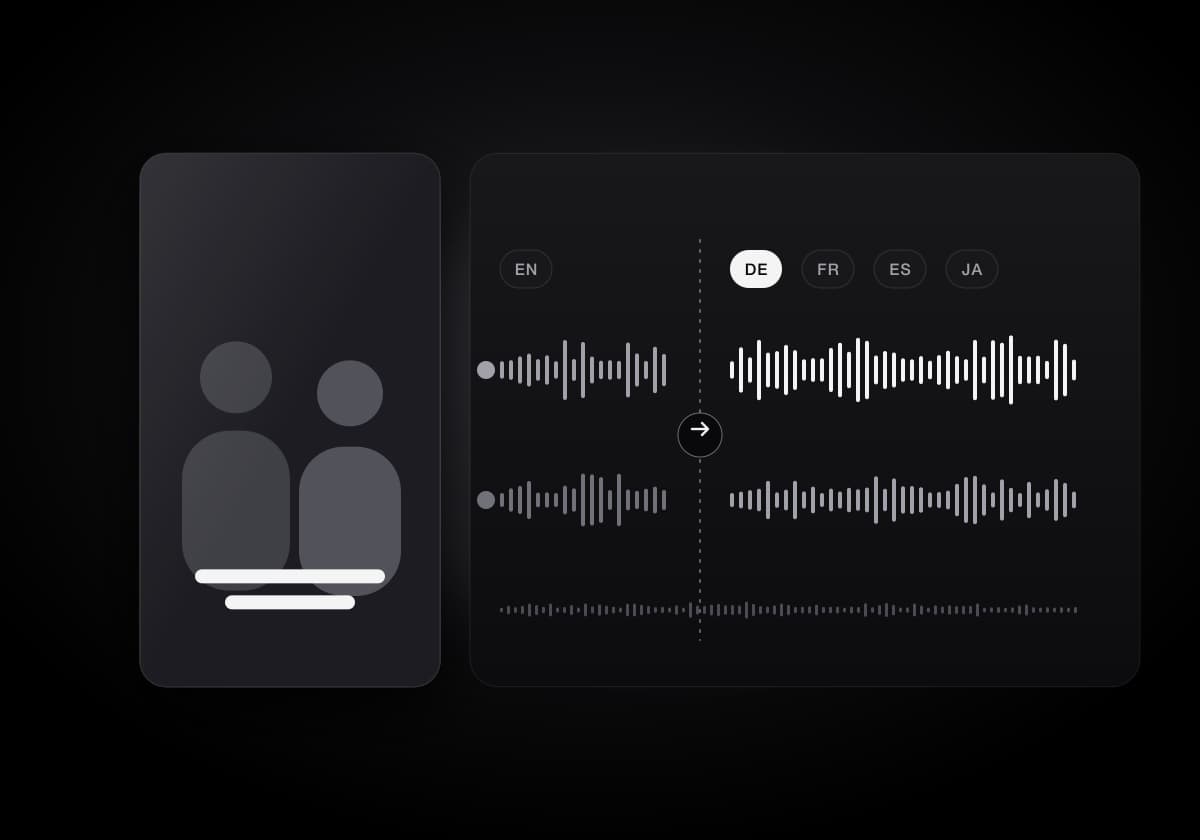
What a dub keeps from the original
A dub only works if it still feels like your video. HypeNest replaces the speech and leaves the rest of the soundtrack alone.
Each speaker's own voice
Speakers are found automatically and each one gets a voice cloned from the clip. Pick the timeline range the sample comes from, or use a built-in male or female voice instead.
Music, effects and laughter
Voice is separated from the rest of the audio first, so the background track, sound effects and the audience laughing stay exactly where they were.
10 target languages
English, German, French, Italian, Spanish, Portuguese, Russian, Japanese, Korean and Chinese.
Pick a language. Keep editing while it dubs.
The Dubbing tool sits in the clip editor. Progress shows each stage with an estimate, and you do not have to wait on the screen.
- 01
Choose the language
Open a clip, open Dubbing and pick one of the 10 languages. Check the speakers HypeNest found and the voice each one gets.
- 02
Separate, translate, voice, mix
Voice is split from music, speakers are matched, lines are translated and voiced, then mixed back with the original sound. Lines appear in the script as soon as they are voiced.
- 03
Fix lines and balance the mix
Edit a line, change its pace or regenerate it, and set the dubbed voice and original sound levels. The preview updates as you move the sliders.
- 04
Download each language
Add more languages to the same clip, open any version in the editor and download it on its own. Exports list every language voice file.
A script you can correct
Machine translation gets most lines right. The script view is there for the ones that sound wrong or run long.
- Edit any line
- Change the wording of a translated line, then regenerate it or apply the change to the dub.
- See what fits
- Every line shows whether it fits the original timing or runs longer, so you know where to shorten.
- Set the pace
- Slower, Natural or Faster per line, for a sentence that needs room or one that has to land quickly.
- Re-cut without starting over
- Trim the clip after dubbing and your edited lines stay where they still fit. Only the new part is translated and voiced.
Three ways to start a dub
Dub one clip, every clip of a project, or a whole video that was never cut into Shorts.
In the clip editor
The Dubbing tool on any clip, with speakers, voices, script and mix. Clip Agent can also start or update a dub for you after you confirm.
On upload: Translate clips into
Choose a language on the settings step and every clip of the project is dubbed when the project finishes.
Video dubbing for a full video
Upload a whole video and pick the language. You get the full video dubbed with its captions translated, in Dubbing and Captions tabs you can edit, then download it. You can leave the page while it runs.
FAQ
Frequently Asked Questions
Languages, voices, limits and what you pay for a dub.
Let your next Short speak Spanish. Or Japanese.
Upload a video, pick a language and keep every speaker's voice in the dub.
Get Started Now