

Skip to content
HypeNest
AI subtitle styles

AI subtitle style generator

Describe a caption look in a sentence, or send a screenshot of captions you like. The AI style composer in HypeNest asks a few follow-up questions, then builds an animated style with font, colors, motion and glow that you can save and use on every clip.

Prompt in words, a screenshot or your voice
Follow-up questions before it builds
Motion and glow, not only colors
Save the style and put it in a brand kit

Free plan · No card

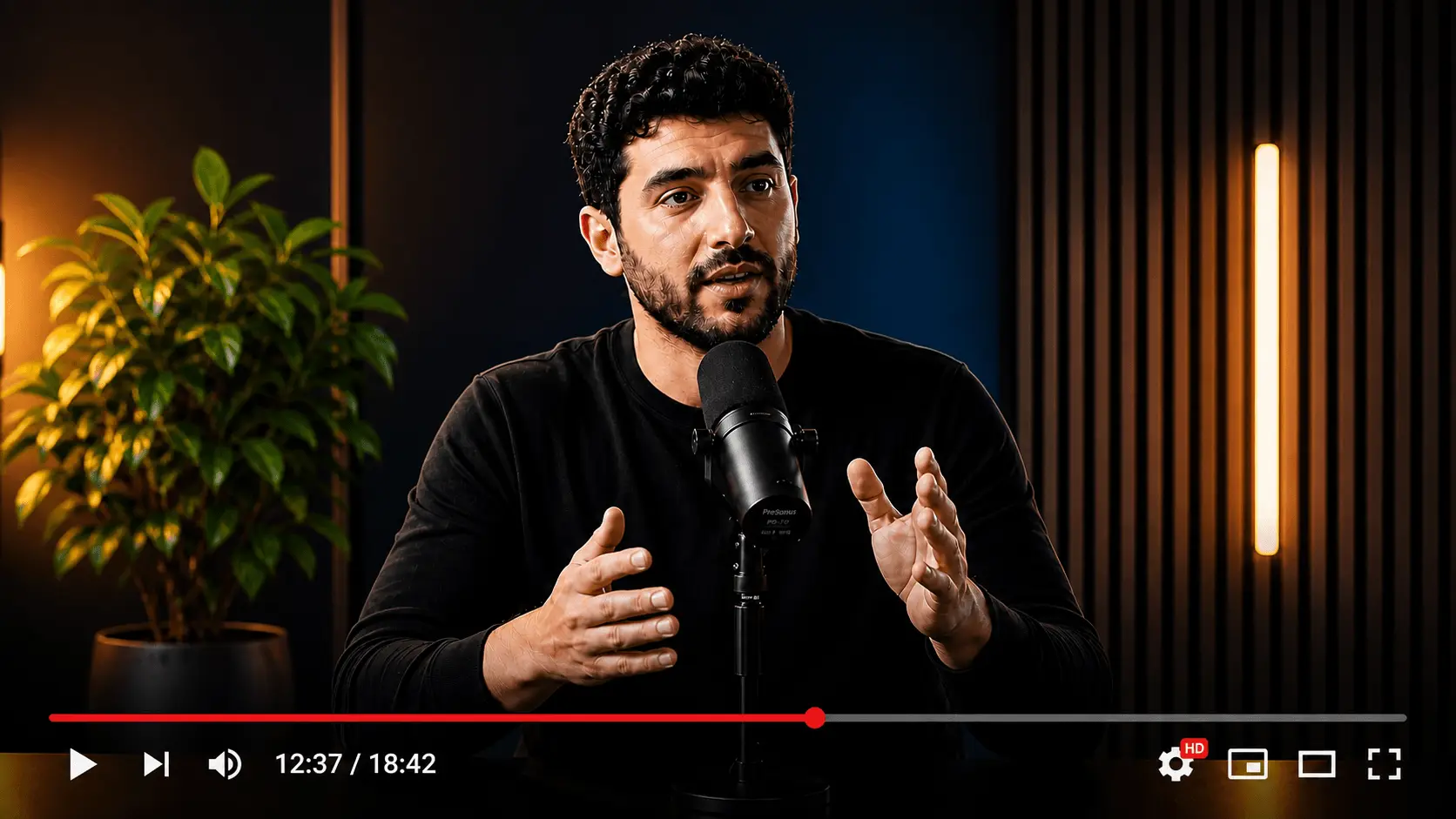
Talking-head video
Talking-head video
Your caption style
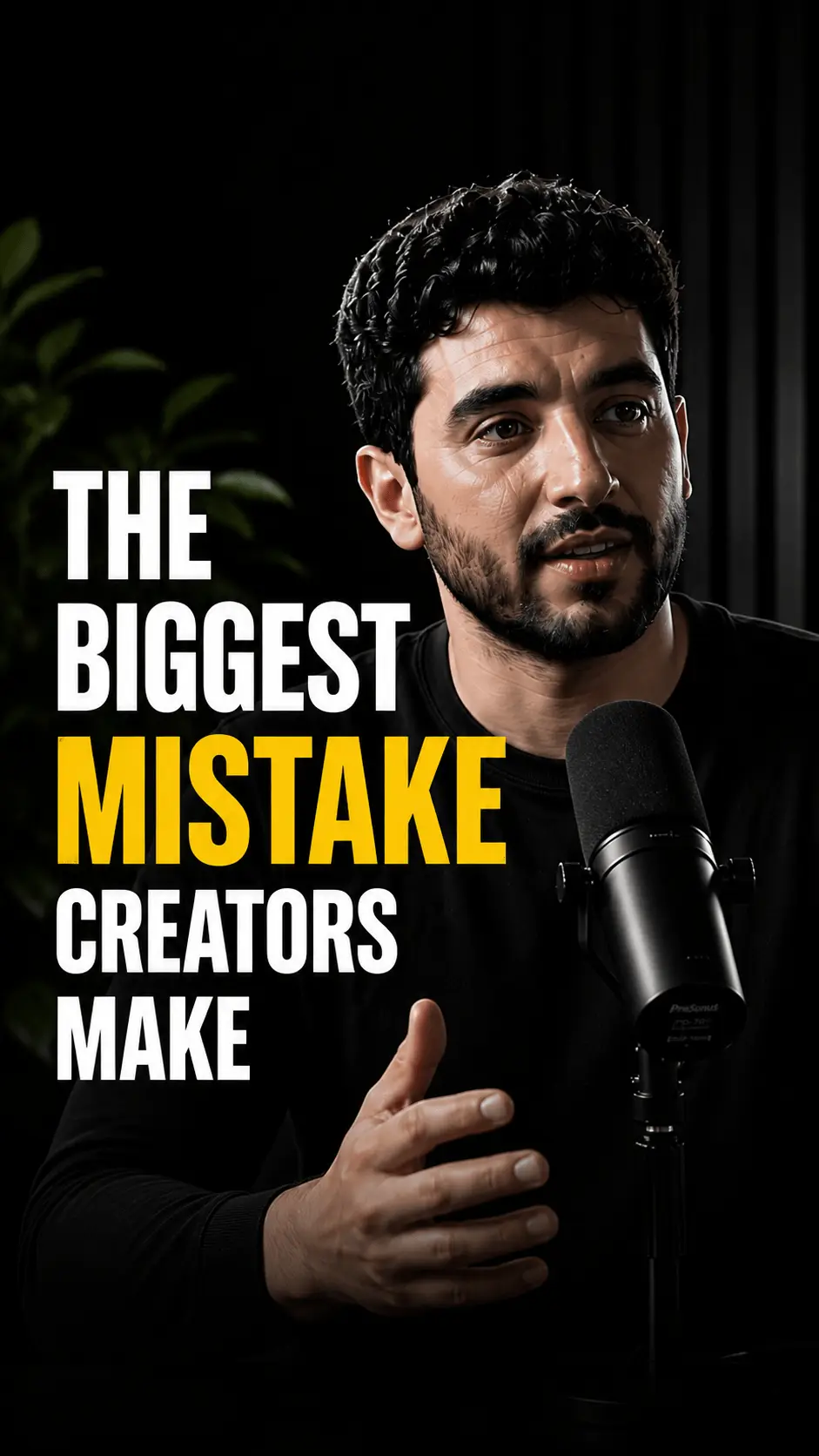
Vertical short clip
0:32
Vertical short clip
0:45
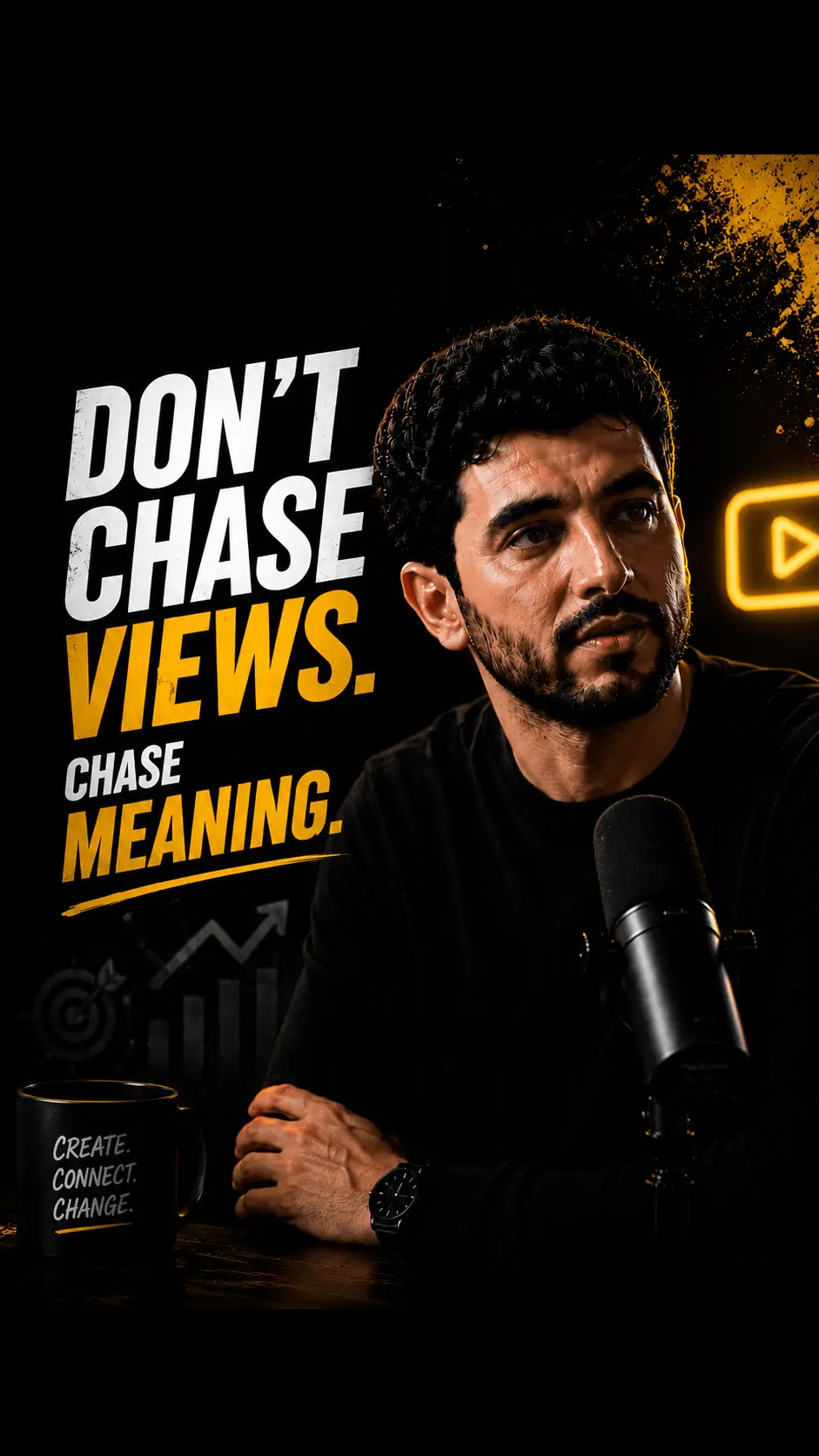
Vertical short clip
0:58

What the AI style composer does

It turns a description into a working caption style: typeface, colors, how words appear and how the spoken word is marked. You stay in a conversation with it until the look is right.

Start from words

Write what you see in your head: "chunky white uppercase, the spoken word turns lime and bounces, thick black outline". If something is missing, such as where the captions sit or how loud the motion should be, the composer asks before it builds.

  • Plain-language prompt, no settings panel first
  • Follow-up questions fill the gaps
  • Dictate the prompt if typing is slower
01
Draft
02
Review
03
Publish

Start from a screenshot

Seen a caption look on another channel you want to get close to? Send a screenshot. The composer reads the type, colors, outline and highlight from the image and builds a style in that direction, which you can then adjust.

  • Upload a still of captions you like
  • Type, colors and highlight read from the image
  • Adjust the result before you save it
Watch this
without
sound

Save it, then use it everywhere

A finished look becomes a saved caption style. Pick it for an upload, attach it to a brand kit so new clips start with it, or switch a single clip to it in the clip editor. Drag and resize the captions on the preview to place them.

  • Saved styles sit next to the eight presets
  • Each brand kit can carry its own style
  • Drag and resize on the clip preview
Transcript scan
Hook @ 04:12Peak @ 18:40

How to generate a subtitle style

  1. Open the Captions page

    Sign in to HypeNest and open Captions. You will see the eight presets and any styles you have saved.

  2. Describe the look or add a screenshot

    Type a prompt, dictate it, or attach a screenshot of captions you like. Mention the mood, the colors and how the spoken word should stand out.

  3. Answer the follow-up questions

    The composer asks what it cannot tell from your prompt, then builds the style with motion and glow. Ask for changes in the same conversation until it fits.

  4. Save and apply

    Save the style, add it to a brand kit or pick it for your next upload. Captions are burned into the exported clip.

Building a caption look by hand vs with the composer

TaskManualHypeNest
Matching a look from another videoGuess the font, measure colors, rebuild the animationSend a screenshot and answer a few questions
Animating the spoken wordKeyframe scale and color word by wordDescribe the motion and the composer builds it
Using the look again next weekCopy a template project and relink mediaSaved style, or a brand kit that applies it

Why describe a caption style instead of building it

Caption editors give you dozens of controls: font, weight, outline width, shadow, highlight color, entry animation, timing. Most creators know the look they want long before they know which of those controls produce it. Describing the result and letting AI translate it into settings skips the trial and error.

It also helps when the look comes from somewhere else. A client sends a reference video, a channel you admire has a distinctive style, or you want your Shorts to match captions you already use in a long video. A screenshot is a faster brief than a list of hex codes.

How to write a prompt that gets the style right

Name four things: the typeface character (heavy, condensed, rounded, handwritten, serif), the colors, how the spoken word stands out, and how lively the motion should be. Leave out what you do not care about; the composer will ask if it matters.

Describe the feeling as well as the parts. "Calm, like a documentary" and "loud, like a reaction channel" push the result in very different directions, even with the same colors.

  • "Heavy white uppercase, spoken word in lime with a quick bounce"
  • "Soft italic serif, no highlight, lines fade in like film subtitles"
  • "Handwritten orange marker words that tilt in one by one"
  • "Neon cyan glow on the active word, dark background bar"

Getting good results from a screenshot

Use a sharp, full-size still where the captions are clearly visible, ideally on a frame where one word is highlighted, so the composer can see how the active word differs from the rest. Cropped or blurry screenshots lose the outline and shadow details.

A screenshot shows one moment, not the motion. Tell the composer how the words should move, or answer its question about it, to get the animation as well as the look.

What the generator does and does not do

The composer builds caption styles: how subtitles look and move. It does not write or translate the subtitles; captions come from the transcript and stay in the language spoken in the video. You can correct any word in the clip editor.

On the free plan you can try a small number of AI-generated looks. Paid plans have no cap; each generated look counts toward usage. How many styles you can keep saved depends on the plan, with no cap on Pro.

Where the style generator fits in HypeNest

HypeNest turns long videos into Shorts: it finds moments, frames them vertically, adds word-timed captions and drafts titles. The style you build here is what those captions look like, on every clip that uses it.

Fonts come from a built-in library of caption fonts, including Cyrillic-capable families. On Starter and Pro you can upload your own font files and use them in any style. Clips are reviewed before they are published to YouTube and TikTok or downloaded.

Prefer to start from a ready-made look?

HypeNest ships eight caption presets, from the yellow Pop highlight to hand-lettered Marker. Compare them before you write a prompt.

Compare caption presets

Who this is for

Creators with a signature look

Rebuild the captions you already use without hunting for settings.

Agencies and editors

Turn a client's reference screenshot into a saved style and brand kit.

Channels testing formats

Try a new caption mood in one prompt instead of an afternoon of tweaking.

Glossary

Caption style

The full look of burned-in subtitles: typeface, colors, outline and shadow, how many words appear at once, how they animate and how the spoken word is highlighted.

Honest limits

  • The free plan includes a small number of AI-generated looks; paid plans have no cap and count them toward usage.
  • A screenshot shows a single frame, so describe the motion you want.
  • Styles change how captions look, not their language; subtitles stay in the spoken language.
  • Your own fonts need Starter or Pro, and you are responsible for the font license.

FAQ

No. The AI style composer runs inside the HypeNest app, on the Captions page, so the style it builds can be saved and used on your clips. Start free to try it.

It builds a style in the direction of the screenshot: typeface character, colors, outline and how the active word is marked. You can adjust the result before saving it.

Yes. The composer builds motion and glow as part of the style, not only colors and fonts.

The free plan includes a small number of AI-generated looks. Paid plans have no cap; each look counts toward your usage.

On Starter and Pro you can upload your own font files and use them in any caption style. Every plan has the built-in font library.

Yes. Attach the saved style to a brand kit and choose that kit when you set up an upload. New clips start with the style, and you can still change it per clip.

Start free

Describe a caption look in a sentence, or send a screenshot of captions you like. The AI style composer in HypeNest asks a few follow-up questions, then builds an animated style with font, colors, motion and glow that you can save and use on every clip.