
How AI Picks the Vertical Layout for Each Shot
Why one crop doesn't fit a whole clip, how HypeNest chooses a layout per shot from the clip's context, when it zooms out over blur, and how to adjust it.
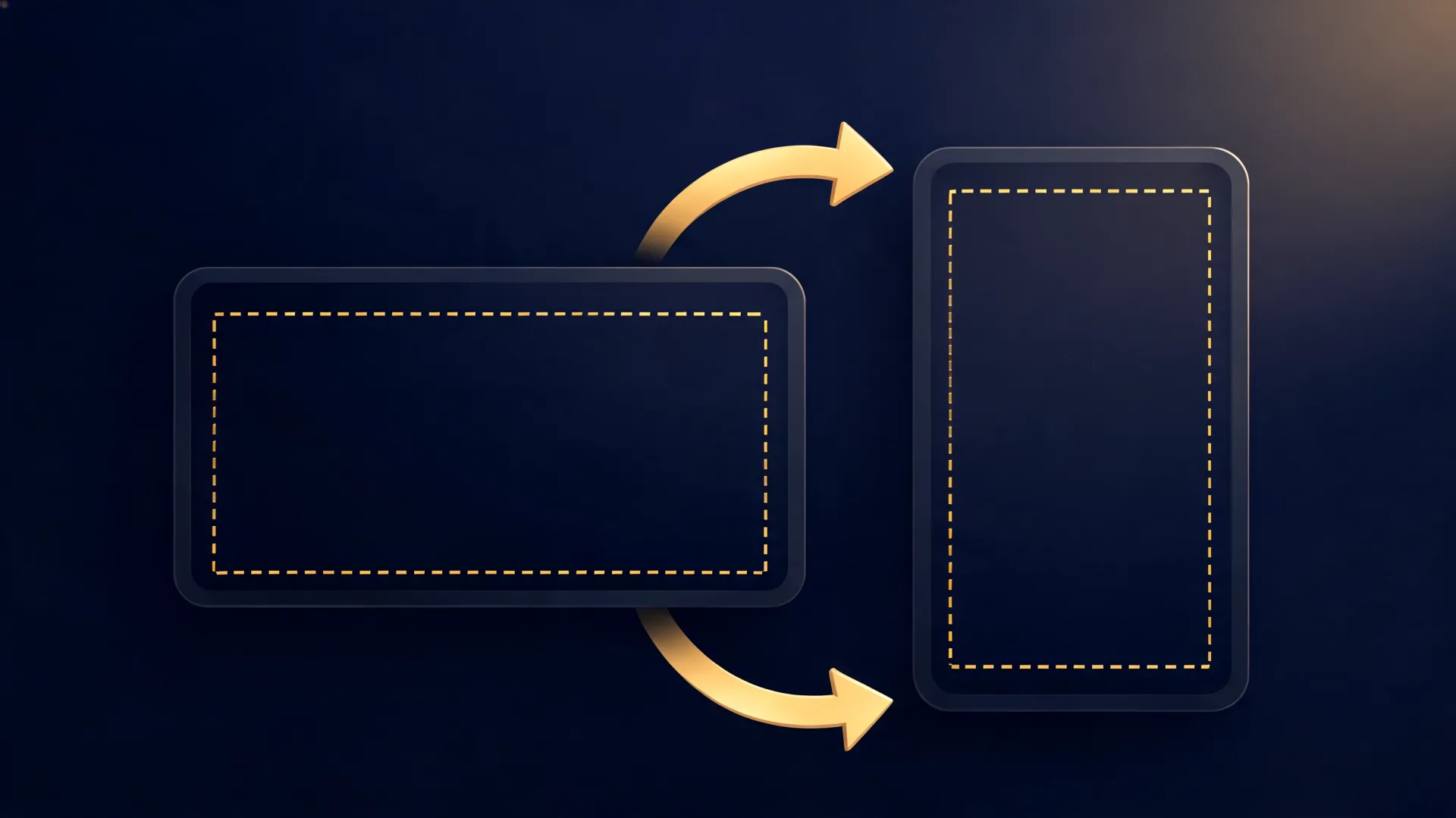
A 40-second clip from a podcast or a tutorial is rarely one shot. It cuts from a close-up of the host to a wide shot of both guests, then to a slide, then back. A single vertical crop that works for the close-up cuts a guest in half on the wide shot and turns the slide into an unreadable strip.
That's why HypeNest's auto-framing decides the layout shot by shot. This article explains what layouts a vertical frame can use, how the AI chooses between them, why it avoids splitting the screen, and how to change a shot when you'd frame it differently.
Quick answer
HypeNest looks at every camera shot in a clip together with the clip's title, description and transcript, and picks the layout that makes the clip easiest to follow on a phone: one full-height window on the subject, two stacked windows, a small inset, or the whole frame shown smaller over a blurred copy of itself. One window is the default. The screen is split only for two people talking in one wide shot, and when the subject is wider than a vertical window, the frame zooms out instead of cutting it off.
If you'd frame a shot differently, open it in the Clip Editor, zoom that shot in or out, switch its layout or drag the frame.
Why one crop doesn't fit a whole clip
A vertical window cut from a 16:9 frame is only about a third of its width. That's enough for one person talking to the camera, but not for two people sitting apart, a person pointing at a whiteboard, or a full-screen slide.
Most long videos change shots every few seconds, so a clip inherits several of them. Choosing per shot means each one gets the layout its content needs, and shots that show the same thing get the same answer, so the clip doesn't jump between layouts for no reason.
The layouts a vertical frame can use
Single window
Stacked
Inset
Whole frame over blur
How the AI decides
The goal for every shot is the same: the phone viewer should follow the clip as easily as possible. To judge that, the AI gets more than pixels:
- The clip's title, description and what is said in it, so it knows whether the clip is about the speaker, the guest's reaction or the chart on screen.
- One frame from each shot and how long that shot stays on screen.
- What is known about the whole video, such as a webcam box that stays in the same corner.
- Faces found in each shot, so a window lands on the person rather than next to them.
Content first: why it rarely splits the screen
A split screen halves the size of everything in it, and every switch between split and single is visible to the viewer. So the AI uses one window by default and splits only when two people are actually talking in the same wide shot.
A cut to the other person isn't a reason to split: the next shot simply gets its own window. Someone walking through the background isn't either. A content panel next to a person is used only when the video has a webcam or avatar presenter, or an overlay edited into the picture. Side-by-side comparisons and edited-in graphics are shown as a whole frame so nothing important is cropped away.
Zooming out instead of cutting off
Within a shot, the window holds still. A frame that drifts after every head movement is harder to watch than a steady one, so each shot gets one window that covers where the subject moves.
When the subject is wider than a vertical window, such as a person with what they're holding, or someone bent over a tablet, the window doesn't narrow to a column or jump to a stray face. It widens to hold the whole subject, and the picture is shown slightly smaller over a blurred copy of itself. You get thin blurred bars instead of a cropped product or a missing hand.
How to change a shot's framing
The AI's choice is a starting point. If you'd frame a shot differently, change it in the Clip Editor:
Find the shot
Set the zoom
Switch the layout
Move the frame
Watch it once more
What to check before you publish
- Faces are fully in frame, including on short shots of a second or two.
- Text on slides and screens is readable on a phone-sized preview.
- Captions don't cover the face or the bottom window of a split.
- The clip doesn't switch layouts more than the content does.
- Objects people show or point at are in the picture, not just beside it.
FAQ
What is per-shot auto-framing?
When does HypeNest use a split screen?
Why do some shots have blurred bars?
Does the frame follow the speaker?
Can I change the AI's choice?
Let each shot get the layout it needs
HypeNest frames every shot from the clip's context and leaves the final call to you in the Clip Editor.