

Skip to content
HypeNest
Montage

Montage video maker

Some ideas never happen in one take: the question comes at minute four, the answer at minute forty. Montage mode finds moments that belong together across a long video and joins two to eight of them into one vertical, captioned Short you review before it goes anywhere.

2 to 8 moments joined into one Short
Picked from anywhere in the source
Adjust every source cut in the clip editor
Review before you publish

Free plan · No card

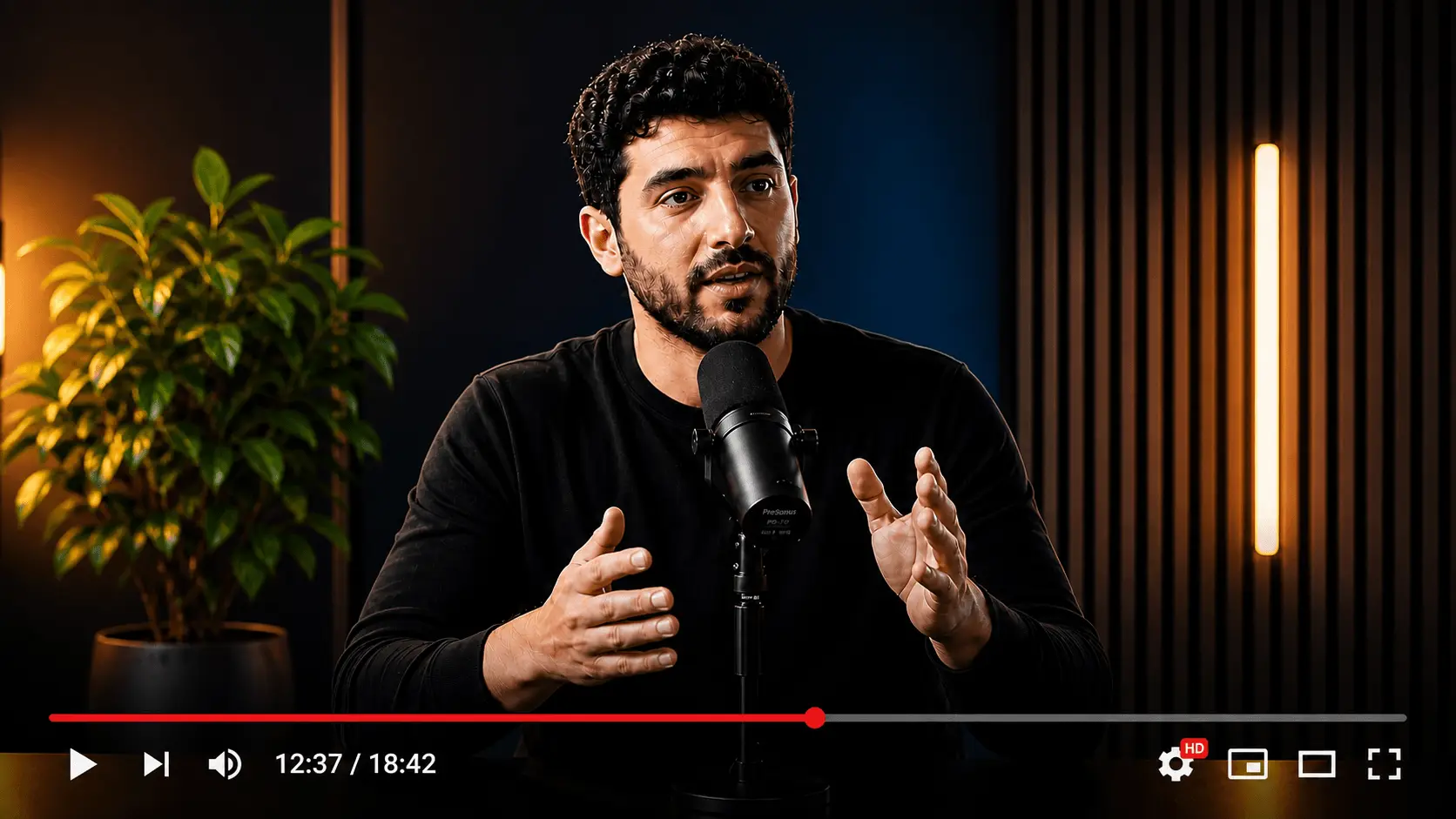
Long video
Long video
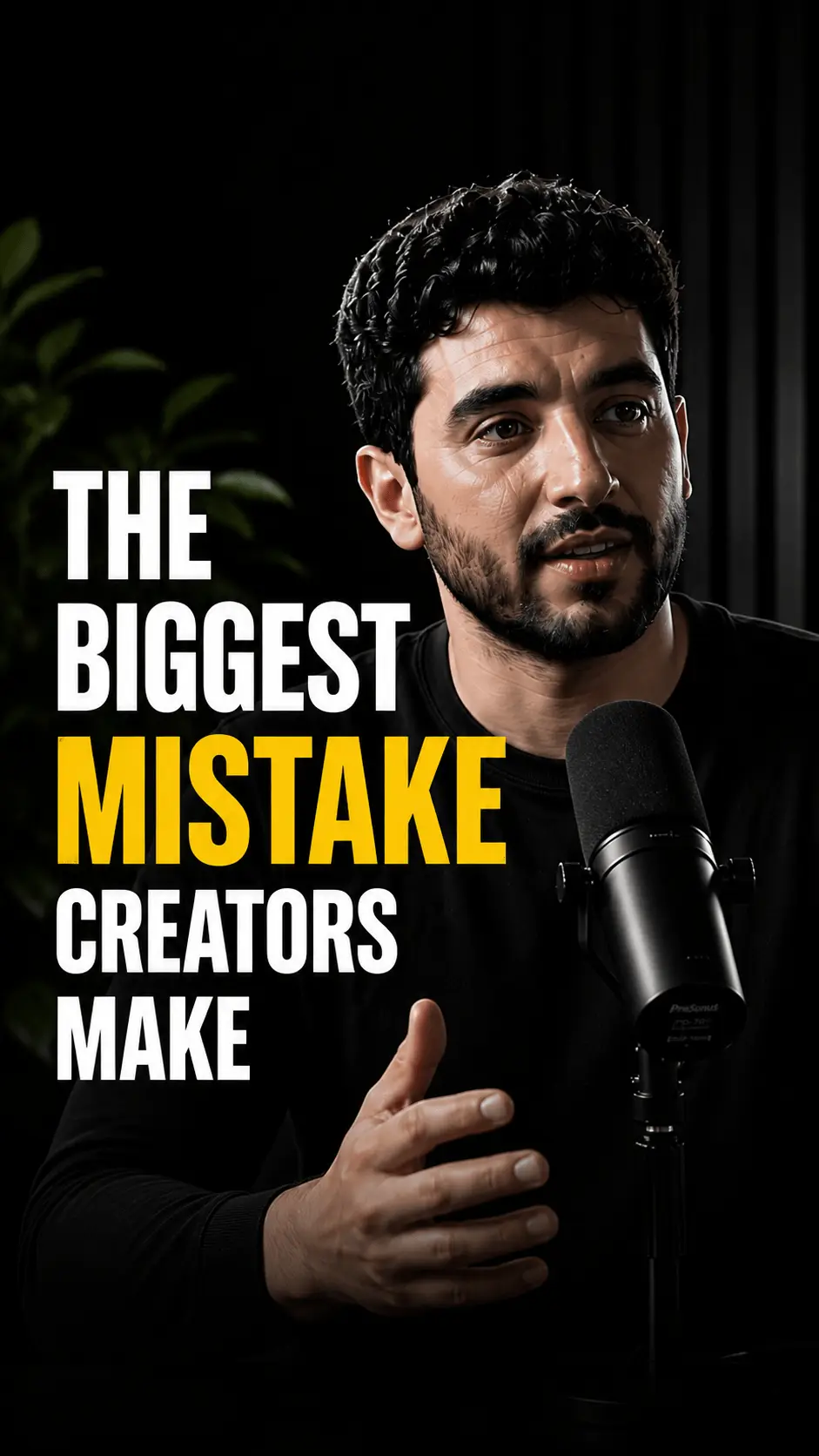
Montage Shorts
Vertical short clip
0:32
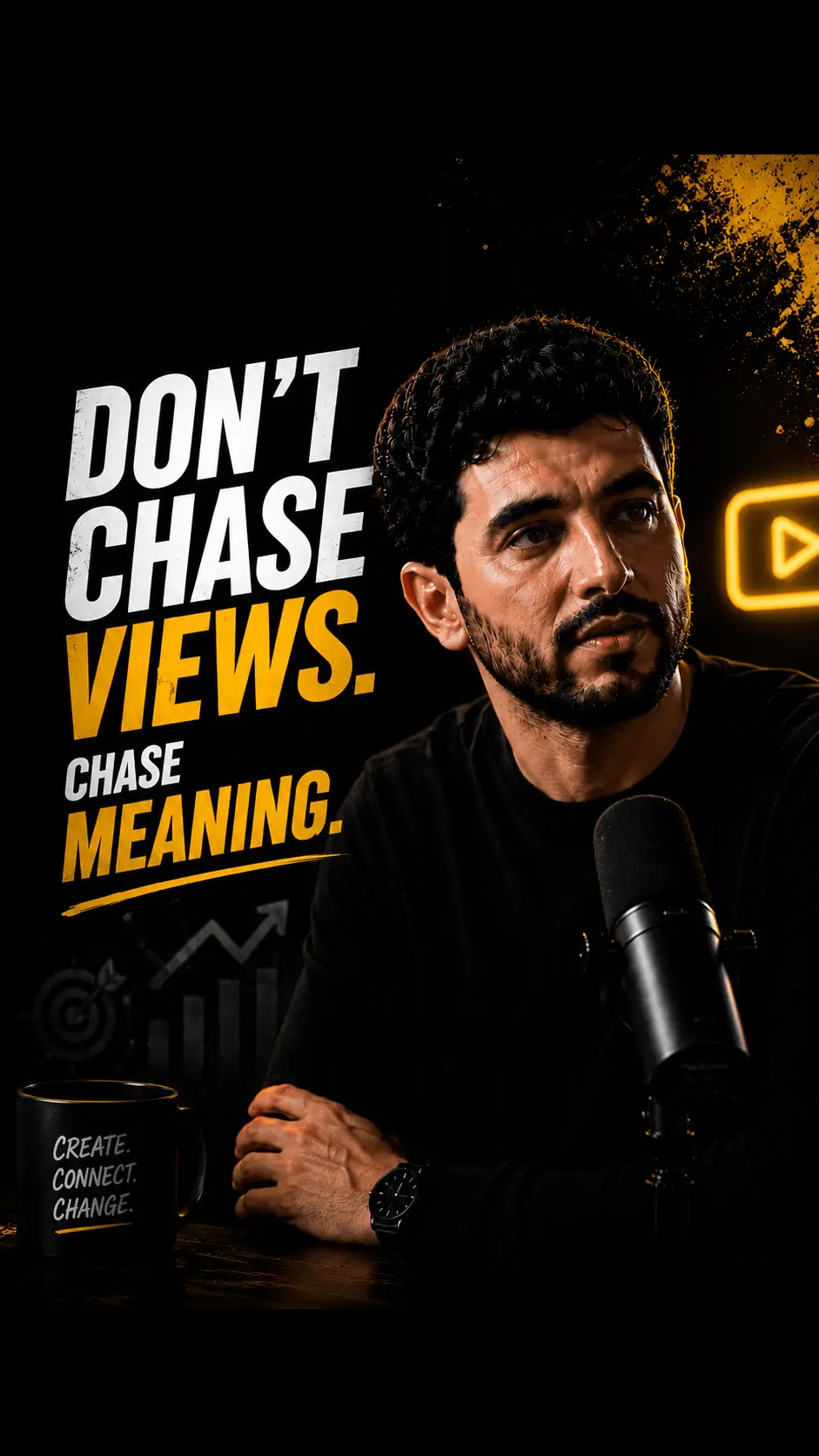
Vertical short clip
0:45
Vertical short clip
0:58

One story, assembled from across the video

A standard clip is one continuous stretch of the source. A Montage clip is a short edit: several moments, in order, that tell one story together.

Continuous or Montage

When you set up an upload, choose how clips are assembled. Continuous, the default, cuts each Short from one uninterrupted part of the video. Montage joins two to eight moments from different parts of the video into each Short.

  • Continuous: one segment per Short
  • Montage: 2 to 8 moments per Short
  • Chosen per upload, not per account
Transcript scan
Hook @ 04:12Peak @ 18:40

Moments that belong together

Montage is built for ideas that are spread out: a claim and the proof that comes later, a recurring joke, three answers to the same question, the before and after of a demo. The joins follow the story, not the clock.

  • Setup and payoff from different minutes
  • Repeated themes collected into one Short
  • Captions and vertical framing on every part
01
Draft
02
Review
03
Publish

You decide the final cut

Open a Montage clip in the clip editor and you can adjust each source cut: start it earlier, end it later, or tighten it. Captions, text, B-roll and the AI Agent work the same way as on any other clip.

  • Drag the edges of each source cut
  • Fix caption words and framing per clip
  • Publish to YouTube and TikTok or download
Transcript scan
Hook @ 04:12Peak @ 18:40

Cutting a montage by hand vs Montage mode

TaskManualHypeNest
Finding moments that belong togetherScrub the whole recording and take notesHypeNest reads the full video and proposes them
Joining them into one vertical ShortCut, arrange, reframe and caption in an editorJoined, framed and captioned in one pass
Fixing one cut that starts too lateReopen the project, retrim, export againDrag that cut's edge in the clip editor

How to make a montage Short

  1. Add your long video

    Upload a file or paste a YouTube link. Podcasts, interviews, lessons and streams with plenty of speech work best.

  2. Choose Montage

    In the upload settings, switch Clip type from Continuous to Montage. Pick your brand kit and caption style as usual.

  3. Review the Montage clips

    Each Short arrives as one story built from several moments, framed vertically and captioned. Watch it as a viewer would.

  4. Adjust the cuts and publish

    Open a clip in the editor to adjust any source cut, then publish to YouTube and TikTok or download the file.

When a montage beats a single clip

Most long videos have a few moments that work alone: a strong opinion, a clean explanation, a funny reaction. Those make good continuous clips. But many of the best ideas are spread out. A guest makes a bold claim early and backs it up half an hour later. A teacher explains a rule, then shows three examples across the lesson.

Cut either part alone and the Short feels unfinished. A montage puts the pieces next to each other, so the viewer gets the whole idea in under a minute.

  • Claim early, proof later
  • The same question answered several times
  • A running joke or catchphrase
  • Before and after of a demo or makeover

What makes a good montage Short

One idea, several angles. A montage works when every moment adds to the same point. Five unrelated highlights back to back read as a trailer, not a story.

Keep the first moment strong. The opening cut still decides whether someone keeps watching, so it should set up the question or the tension the rest resolves. Check each join on a phone: if a sentence is cut mid-thought, extend that source cut in the editor.

Montage vs highlight reel

A highlight reel is usually a best-of: strong moments, loosely connected, often longer than a Short should be. A Montage clip is tighter. It is built around one storyline and stays within normal Short length, so it can be published to the same feeds as your other clips.

The choice depends on the video. Continuous suits sources full of moments that stand alone; Montage suits sources where the best ideas only make sense together.

Better picks with Text + Visual analysis

By default HypeNest reads the transcript to find moments. On paid plans, Text + Visual analysis also looks at what is on screen, which helps when the story lives in the picture: a product being assembled, a slide that changes, a reaction without words.

Analysis presets run from Quick through Standard, Smart and Pro to Max. The deeper levels need a paid plan, and Max needs Pro.

Where Montage fits in HypeNest

Montage is a way of assembling clips, not a separate product. The same pipeline frames the Short vertically, adds word-timed captions in your style and drafts titles and descriptions. Nothing is published until you review it.

Montage is not locked to a plan; Montage clips use your usage like any other clips. HypeNest has a free plan with no card, and exports carry no watermark.

Who this is for

Podcasters and interview shows

Pull a guest's argument together from across a long conversation.

Educators

Join a rule and its examples from different parts of a lesson.

Streamers

Collect a running joke or a comeback arc into one Short.

Glossary

Montage clip

A short-form clip built from several separate moments of a longer video, joined in order so they tell one story.

Honest limits

  • Joining moments that were said apart can shift their meaning; watch every Montage clip before you publish it.
  • Each Montage Short holds 2 to 8 moments; ideas that need more context fit better in a longer edit.
  • Text + Visual analysis is available on paid plans only.
  • Direct publish is live for YouTube and TikTok; download the file for other networks.

Need one uninterrupted moment instead?

Continuous mode, the default, cuts each Short from a single stretch of the video. It suits strong standalone moments.

AI video clipper

FAQ

A way of assembling clips in HypeNest. Instead of cutting each Short from one continuous part of the video, Montage joins several moments from across the video into one Short that tells a single story.

Between 2 and 8, depending on how the story is spread across the source.

Yes. Open the clip in the clip editor and adjust each source cut: start it earlier, end it later or tighten it.

Montage is not limited to a plan. Montage clips count toward your usage like any other clips.

No. You review every clip first, then publish to YouTube and TikTok or download the file.

Continuous for moments that work alone, Montage for ideas spread across the video. Continuous is the default, so switch to Montage in the upload settings when the story is spread out.

Start free

Some ideas never happen in one take: the question comes at minute four, the answer at minute forty. Montage mode finds moments that belong together across a long video and joins two to eight of them into one vertical, captioned Short you review before it goes anywhere.